Want to create your own patterns in Procreate but aren't sure where to start? Pattern templates are a fun and easy way to get started with digital pattern drawing, whether you're a beginner or simply looking for a little creative inspiration.
Instead of starting with a blank canvas, you can use a template as a guide for your artwork. Add your own motifs, doodles, and colours to transform a simple outline into something uniquely yours.
In this tutorial, I'll show you how to use pattern templates in the Procreate app on your iPad and share a few ideas for making the designs your own.
Watch the Tutorial
The easiest way to see how pattern templates work is to watch them in action! In the video below, I'll walk you through the process of using pattern templates in Procreate to get your creativity flowing.
Follow along with the tutorial and experiment with your own designs as you go.
What Are Pattern Templates in Procreate?
Pattern templates provide a starting point for creating seamless pattern designs for surface design, print on demand, digital art etc.
They give you a structure to work with, so you can focus on experimenting with different marks, shapes, textures, and details rather than figuring out an entire composition from scratch.
They're especially useful if you enjoy drawing repeating motifs, geometric designs, abstract patterns, or decorative doodles.
You can use them to practise your drawing skills, explore new ideas, or develop artwork to turn into a repeating pattern design.
The best part? You don't have to be an expert artist to get started.
How to Use Pattern Templates in Procreate
Here's a quick overview of the process.
Step 1: Open Procreate
Start by opening Procreate on your iPad and creating a new square canvas, 3000 x 3000 pixels for example.
Choose a canvas size that suits the type of artwork you want to create. If you're just experimenting or practising, there's no need to overthink this part.
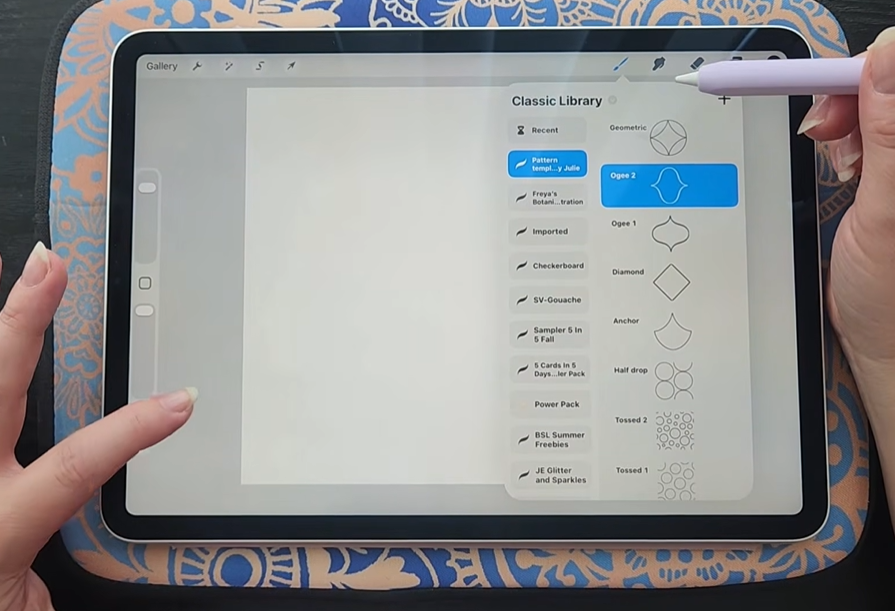
Step 2: Choose a Pattern Template
Open your pattern template brush set and select the template you'd like to use.
Stamp the template onto your canvas and select Fit to Canvas to make sure it fills the whole page.
You can experiment with different templates until you find one that inspires you.
Step 3: Add a New Layer
Create a new layer above your template layer.
Working on a separate layer makes it easier to experiment with different brushes, colours, and drawing techniques without changing your original template.
Step 4: Start Drawing Your Motifs
Now comes the fun part!
Use your favourite Procreate brushes to add details, doodles, motifs, and textures to the template. You can follow the existing structure or use it more loosely as inspiration.
Try experimenting with:
- Simple shapes like flowers or petals
- Dots, dashes, and repeating marks
- Curved lines and organic shapes
- Decorative details and small doodles
- Different textured brushes or line weights
There's no need to fill every space or follow the template perfectly. The goal is to explore ideas and create something you enjoy.
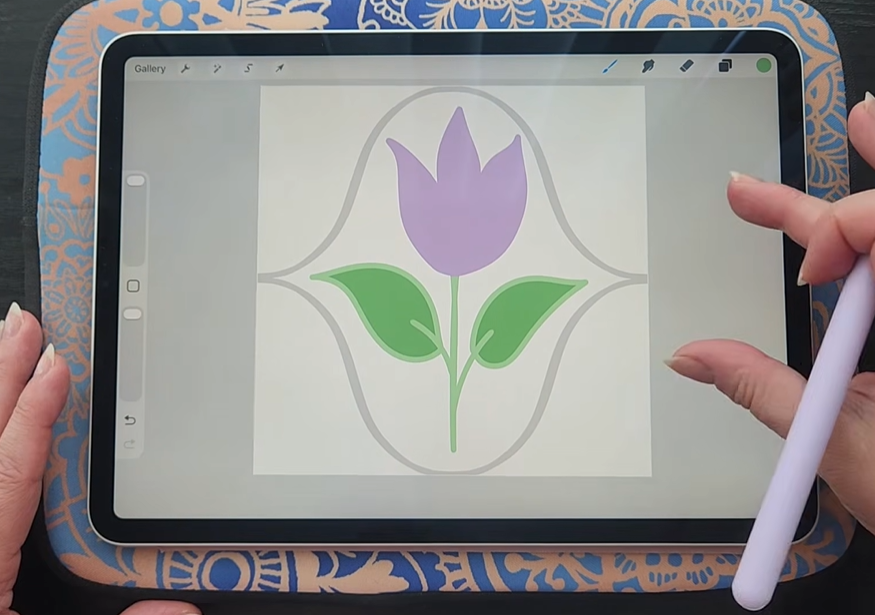
Step 5: Create the Seamless Pattern
Mark all 4 corners of your motif layer, and duplicate the layer 3 times so you have 4 copies in total.
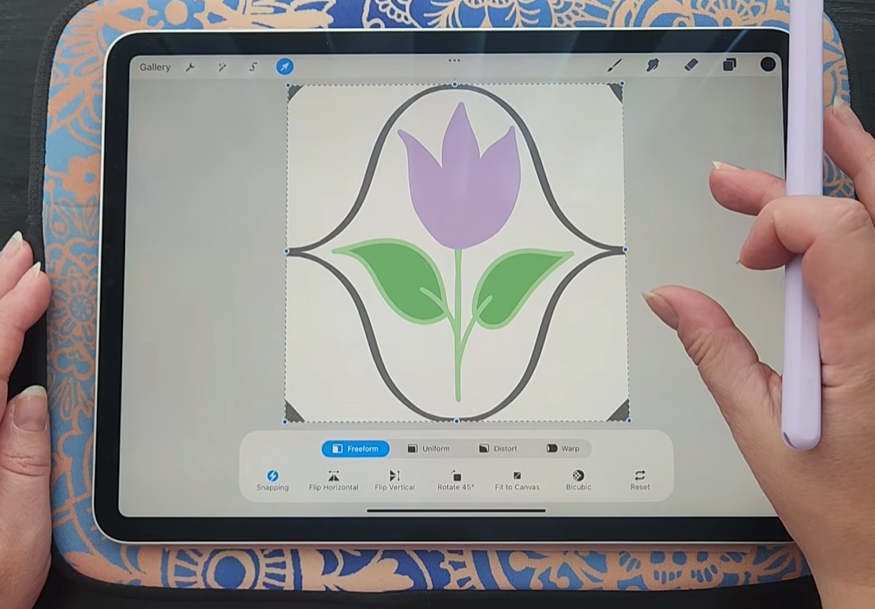
With Snapping and Magnetics turned on, shift your motif to all 4 corners of the canvas like so:
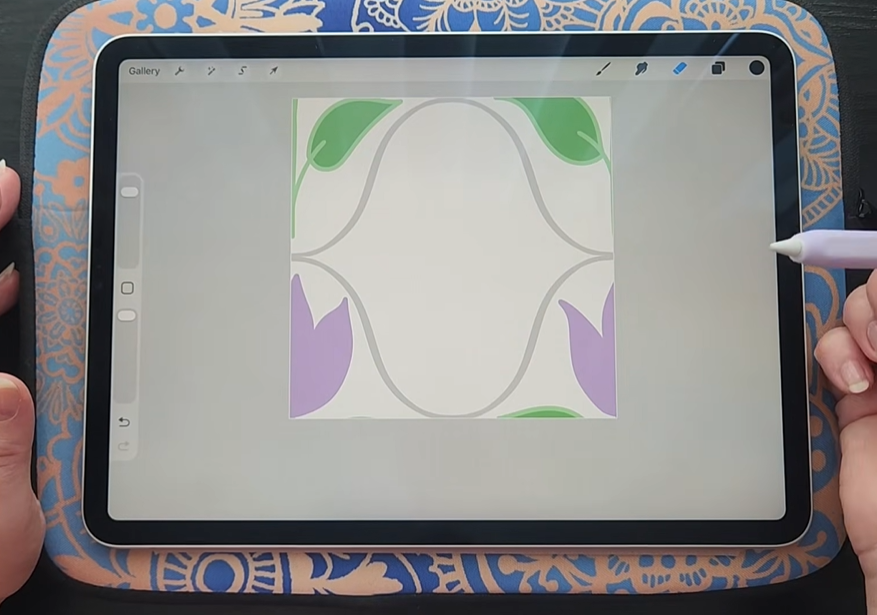
Then, fill in the middle part of the canvas with another motif (or the same one if you like).
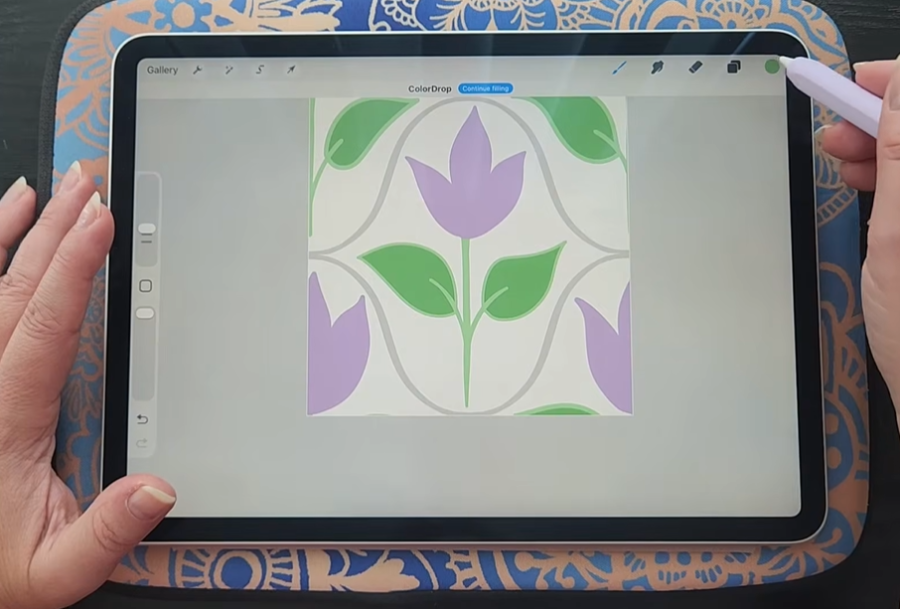
Step 6: Hide the Template and Admire Your Artwork
Once you're happy with your drawing, hide the template layer to see your finished design on its own.
You can also duplicate it some more and snap it to all 4 corners again to see the final tiled design.
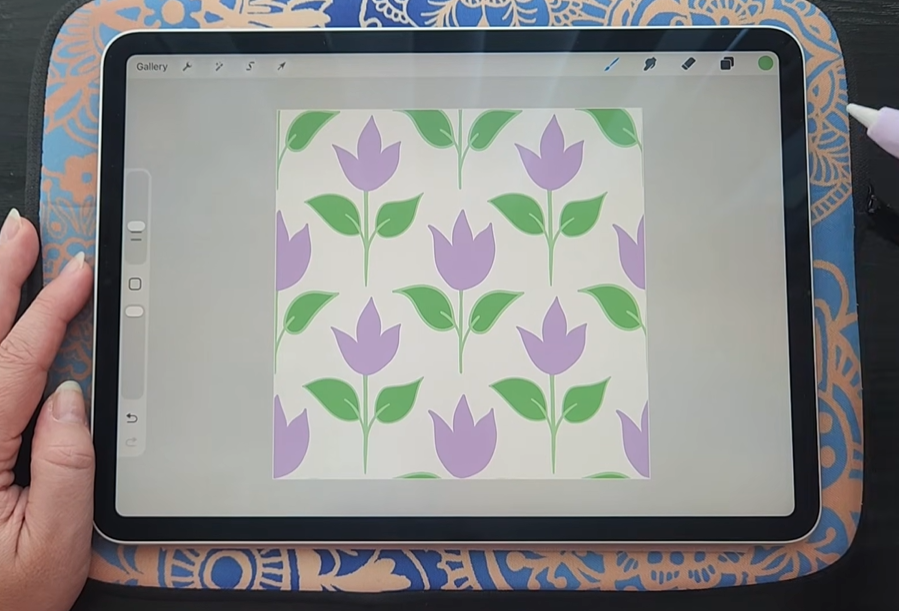
Tips for Using Procreate Pattern Templates
Once you've tried the basic process, there are plenty of ways to make the templates your own.
Experiment with different brushes. Try monolines, textured brushes, stamps and other brush types to see how they change the look of your artwork.
Try a limited colour palette. Choose two or three colours and use them throughout your design for a cohesive look.
Mix simple and detailed patterns. Combining areas with lots of detail and areas with more open space can make your artwork more interesting.
Don't aim for perfection. Templates are meant to help you get started, not restrict your creativity. Feel free to change the design, add unexpected details, or take it in a completely different direction.
Save your experiments. You might discover a combination of shapes, brushes, or colours that inspires a whole new collection of artwork.
Get Your Own Pattern Design Templates for Procreate
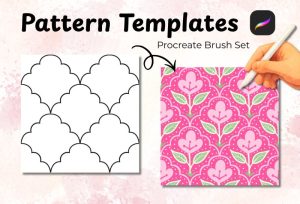
If you'd like to try this technique yourself, I've created a set of Pattern Templates for Procreate to help you get started.
The templates provide a starting point for your digital drawing, making it easier to explore decorative patterns and experiment with your own ideas.
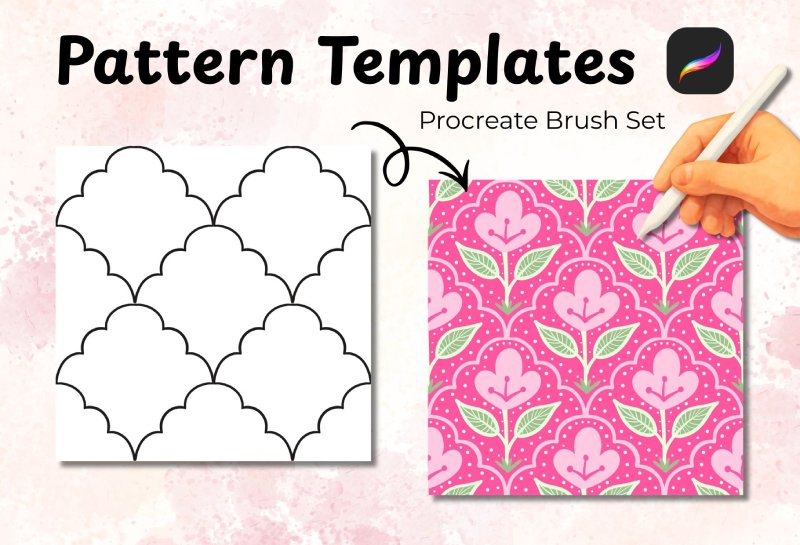
Pattern Templates for Procreate | 13 Pattern Template Brushes
Create beautiful artwork with 13 pattern templates for Procreate! Includes 10 new templates plus 3 bonus templates as easy-to-use Procreate brushes.
Whether you're looking for a new creative activity, want to practise digital art, or simply enjoy experimenting with patterns, these templates can help you spend less time staring at a blank canvas and more time creating.
Keep Exploring Your Creativity
One of my favourite things about digital art is how easy it is to experiment. You can try new brushes, change colours, undo a mark, and explore different ideas without worrying about wasting paper or art supplies.
Pattern templates are just one way to make that process more approachable.
Try a few different designs, experiment with your favourite brushes, and see where your creativity takes you.
And if you follow along with the video, I'd love to see what you create!
Happy creating,



0 Comments